 Veranda
 FTP
Veranda FTP copies files between the SD card and an FTP server, through the Wi-Fi modem (see Network setup).
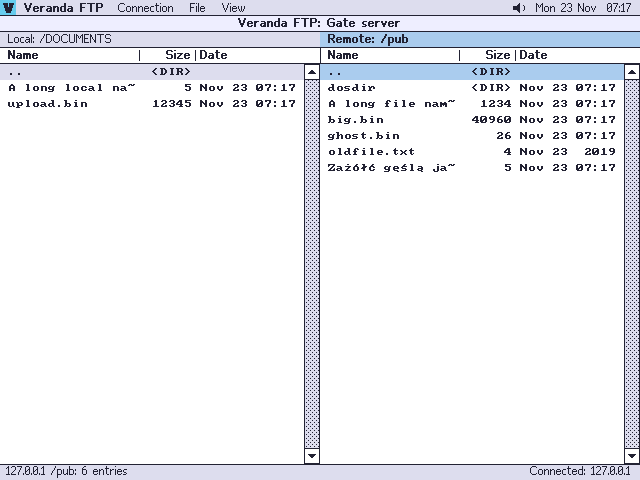
The window
Two panes side by side: the card on the left (it starts in /DOCUMENTS), the server on the right. Each shows its folder above its columns, names, sizes and dates, and has a scroll bar: click an arrow to move a line, the track to move a page. The pane you work in has its folder in bold, on the highlight colour. The status bar shows what is happening; during a transfer, the bytes, the percentage, a progress bar and the speed.
Connect
- Connection > Sites... shows your saved servers.
- New adds a server. Click a field (or Tab, Down, Up) and type: name, host, port, user, password, start folder. Leave the user empty to log in as
anonymous. - Click a server, then Connect (or double-click it, or press Return). Delete forgets the selected server. Close (or Esc) goes back to the panes.
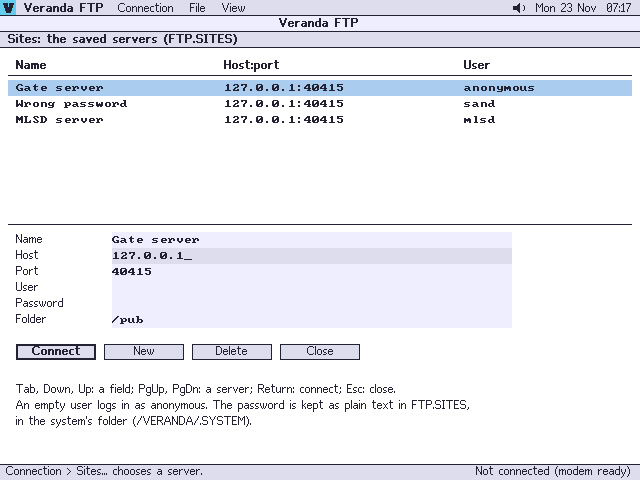
Connection > Connect connects to the selected server again. Connection > Disconnect says goodbye.
Work with files
- Double-click a folder to open it.
..goes up. This works in both panes. - File > Download copies the selected file on the server into the card's folder.
- File > Upload copies the selected file on the card into the server's folder.
- New folder..., Delete and Rename... work on the pane you last clicked in. Refresh reads the pane again.
- View sorts both panes by name, size or date; Other pane switches pane.
The menus show their keys at the right.
| Key | Action |
|---|---|
| Tab | switch pane |
| Arrows, PgUp, PgDn, Home, End | move |
| Return | open a folder |
| F5 | copy (download from the right pane, upload from the left) |
| F6 | rename |
| F7 | make a folder |
| F8 | delete |
| Esc | stop a transfer |
Menus keep working during a transfer. Alt+Tab puts Veranda FTP aside while a file comes; the transfer goes on when you come back.
Saved servers: FTP.SITES
The servers are in /VERANDA/.SYSTEM/FTP.SITES, one per line:
name,host,port,user,password,start folderYou can write this file on a PC too. A field cannot contain a comma. The password is stored as plain text. Anyone who can read the card can read it.
Limits
- 250 entries a pane; names up to 63 characters.
- One file at a time.
- Binary transfers, passive mode only. A server behind NAT may give the wrong address for the data connection.
- No FTPS (TLS), no resume of a broken transfer.
- A file downloaded after an Alt+Tab is written a little slower.
Credits: the FTP code comes from Packet16, Marcin Spoczynski's FTP client for the X16 (MIT).
This page is also in the wiki, and on the X16 (the desktop's Veranda > Help).