 Veranda
Paint
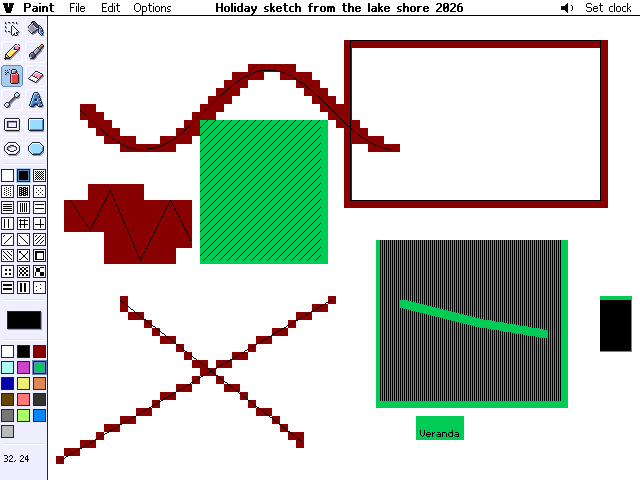
Paint is a drawing program in the style of geoPaint: black lines and patterns, with colour added by 8 x 8 blocks. Pictures are 592 x 464 pixels.
Start it
- Double-click Paint in
/VERANDA/APPS. - Double-click a Paint picture: Paint opens it.
The screen
- The menu bar: Paint, File, Edit, Options, and the picture's name.
- The column on the left:
- the tools, two a row: selection, fill, pencil, brush, spray, eraser, line, text, rectangle, filled rectangle, oval and filled oval. The chosen tool sits on a blue plate.
- the patterns: 24 patterns. The chosen one has a blue ring.
- the current pattern on the current colour, as it will look in the picture.
- the colours: click one to make it the current colour.
- the status: where the pointer is in the picture (in pixels from its top left) and, while you drag out a shape or a selection, its width and height.
- The drawing area: the rest of the screen.
The tools
- Selection: drag out an area. It snaps to whole 8 x 8 blocks. Then use Cut, Copy or Paste in the Edit menu.
- Fill: click in an area of paper. The area around the click, up to the ink, gets the current pattern. A large area full of patterns can take a few seconds; the pointer shows that Paint is busy.
- Pencil: draw thin lines as you drag.
- Brush: paint the current pattern with a round tip as you drag.
- Spray: hold the button down to spray dots around the pointer.
- Eraser: rub out as you drag.
- Line: drag from one end to the other.
- Text: click where the text goes and type a line (up to 40 characters), then press Return.
- Rectangle and oval: drag a frame.
- Filled rectangle and filled oval: drag a shape filled with the current pattern.
Colour
The X16's 640 x 480 screen has one ink colour and one paper colour for each block of 8 x 8 pixels. So in Paint:
- the drawing tools give the blocks they touch the current colour as their paper colour. Colour 0 is the normal paper.
- Options > Ink colour makes the current colour the ink colour of the whole picture (black at first).
Menus
| Menu | Items |
|---|---|
| Paint | About Paint, Desk accessory... |
| File | New (Ctrl N), Open... (Ctrl O), Save (Ctrl S), Save as..., Export..., Print... (Ctrl P), Quit (Ctrl Q) |
| Edit | Clear, Invert, Select, Cut (Ctrl X), Copy (Ctrl C), Paste (Ctrl V) |
| Options | Ink colour, Text font... |
- Edit > Clear empties the picture. Invert turns ink pixels to paper and paper pixels to ink.
- Edit > Select gives you the selection tool (the first tool in the column): drag out an area (it snaps to whole 8 x 8 blocks). Cut and Copy put it on Veranda's clipboard (with its colours). Paste shows the clipboard's picture floating under the pointer; click to put it down.
- Options > Text font... chooses the font of the text tool from the fonts in
/VERANDA/FONTS.
The menus show their keyboard shortcuts. The tools are chosen with the mouse.
Files
- Save and Save as write a Paint picture (a GEOS document,
Name.cvton the card). The first Save goes to/DOCUMENTS. Long names are fine. - Export... writes the picture as a BMP file (4 bits a pixel, with its colours) for a PC.
.bmpis added if the name has no dot. - Print... writes the picture to a PDF file: first a box for the page (A4 or US Letter) and the size (fit to the page, or 80 pixels an inch), at 150 dots an inch, in colour.
.pdfis added if the name has no dot. Print the PDF on a PC. - You can also drop a Paint picture on the desktop's printer icon.
- Colour Paint opens Paint pictures too, and its Export for Paint writes them.
- View shows Paint pictures. Archive turns C64 geoPaint pictures into Paint pictures.
Limits
- One ink colour a picture; one paper colour for each 8 x 8 block.
- No undo.
- The Open box lists the GEOS files (
.cvt) of a folder. A file that is not a Paint picture is refused when you open it.
This page is also in the wiki, and on the X16 (the desktop's Veranda > Help).